I have been refining my small KiCad library for classic RF and radiotechnical projects, especially for homebrew modules built with discrete parts, rod tubes from CCCP, IF transformers from Toko and vintage-style tuning components including some KVG crystal filters.
The goal of this library is practical, having immediately usable symbols and footprints of parts for designing an experimental HF radio.
What is included
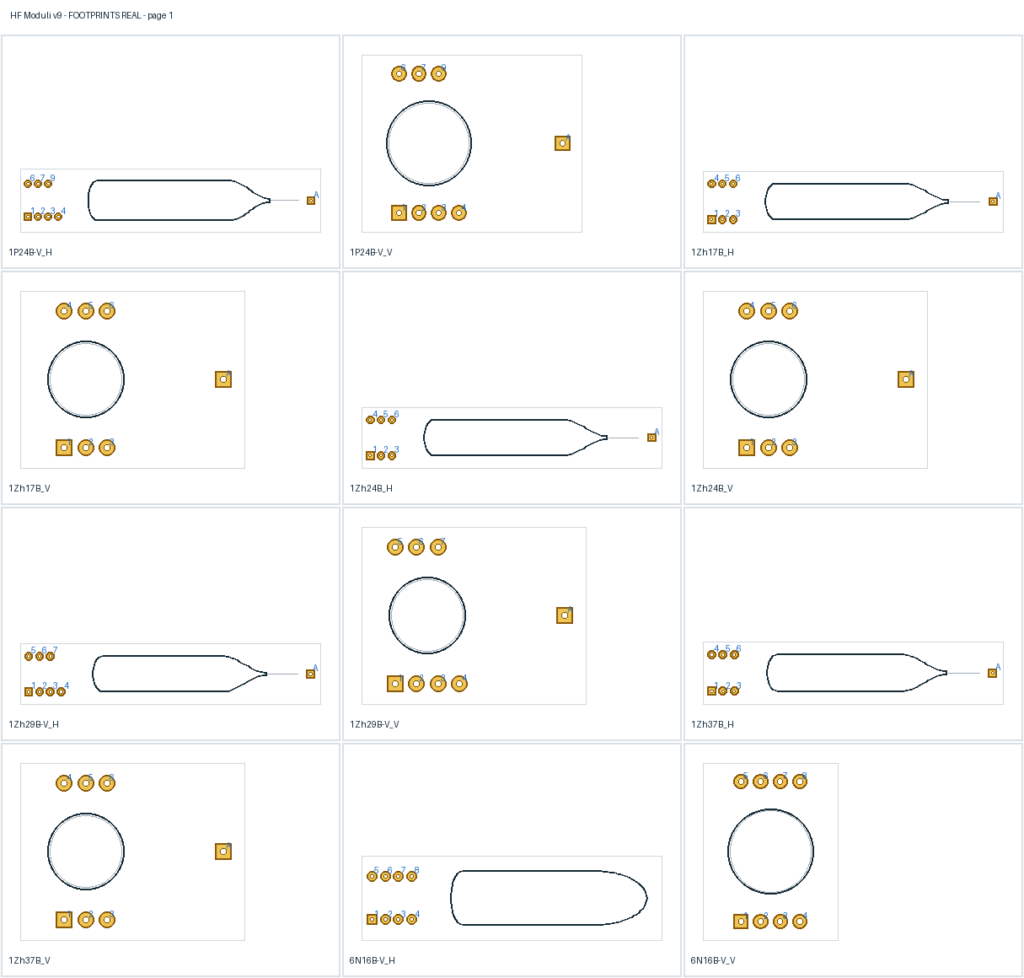
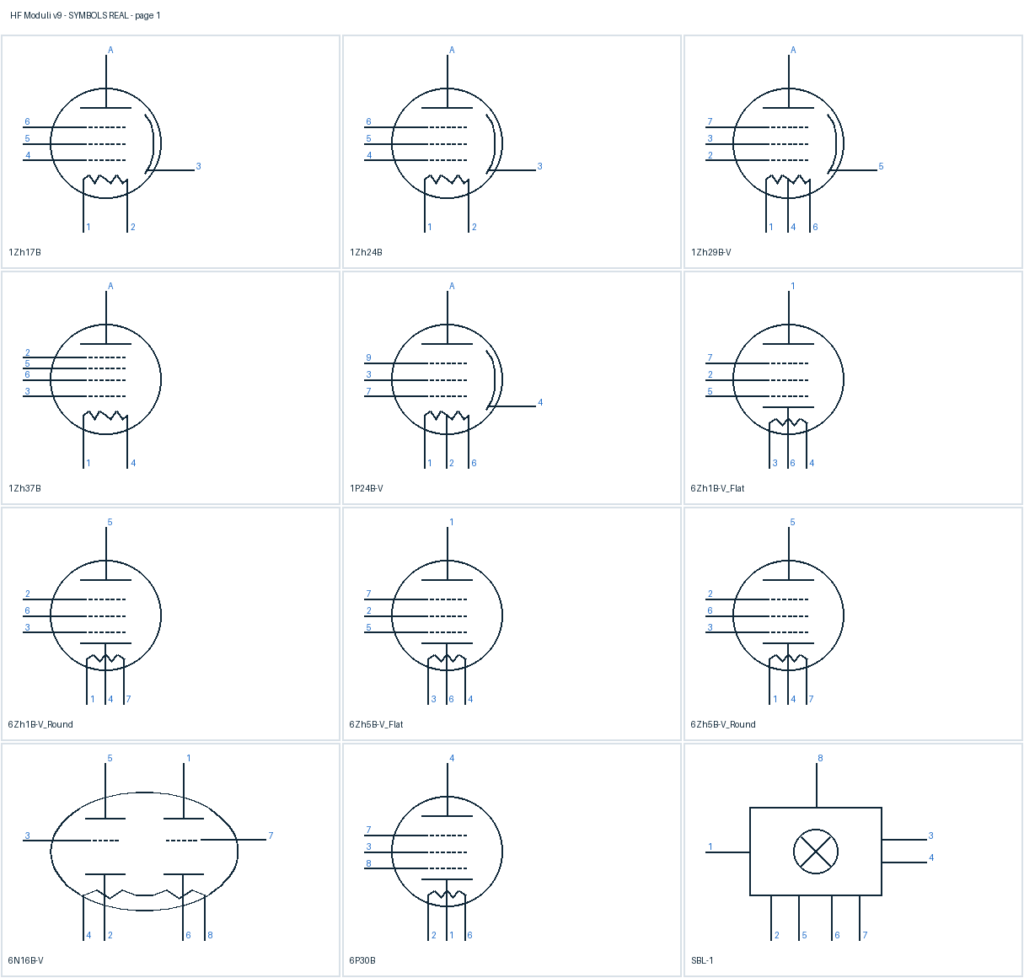
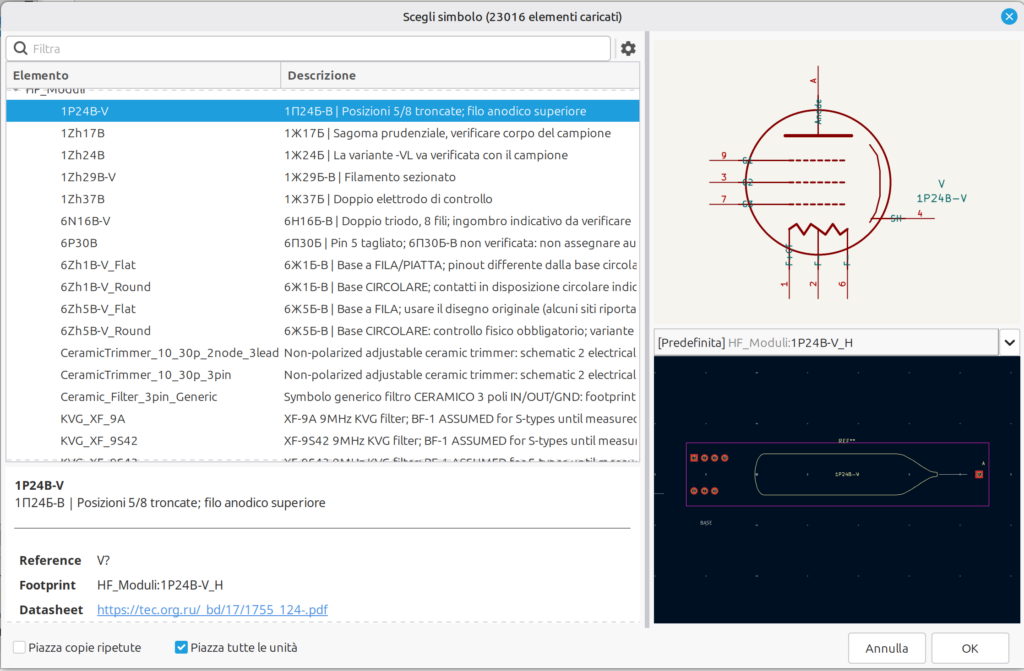
- Soviet Rod tube symbols for 1Ж17Б, 1Ж24Б, 1Ж29Б-В, 1Ж37Б, 1П24Б-В using classic radiotechnical representation
- Rod tube footprints, both horizontal and vertical variants
- Subminiature soviet tubes of the series 6: 6Ж1Б-В, 6Ж5Б-В, 6Н16Б-В, 6П30Б footprints and symbols
- SBL-1 mixer symbol and footprint
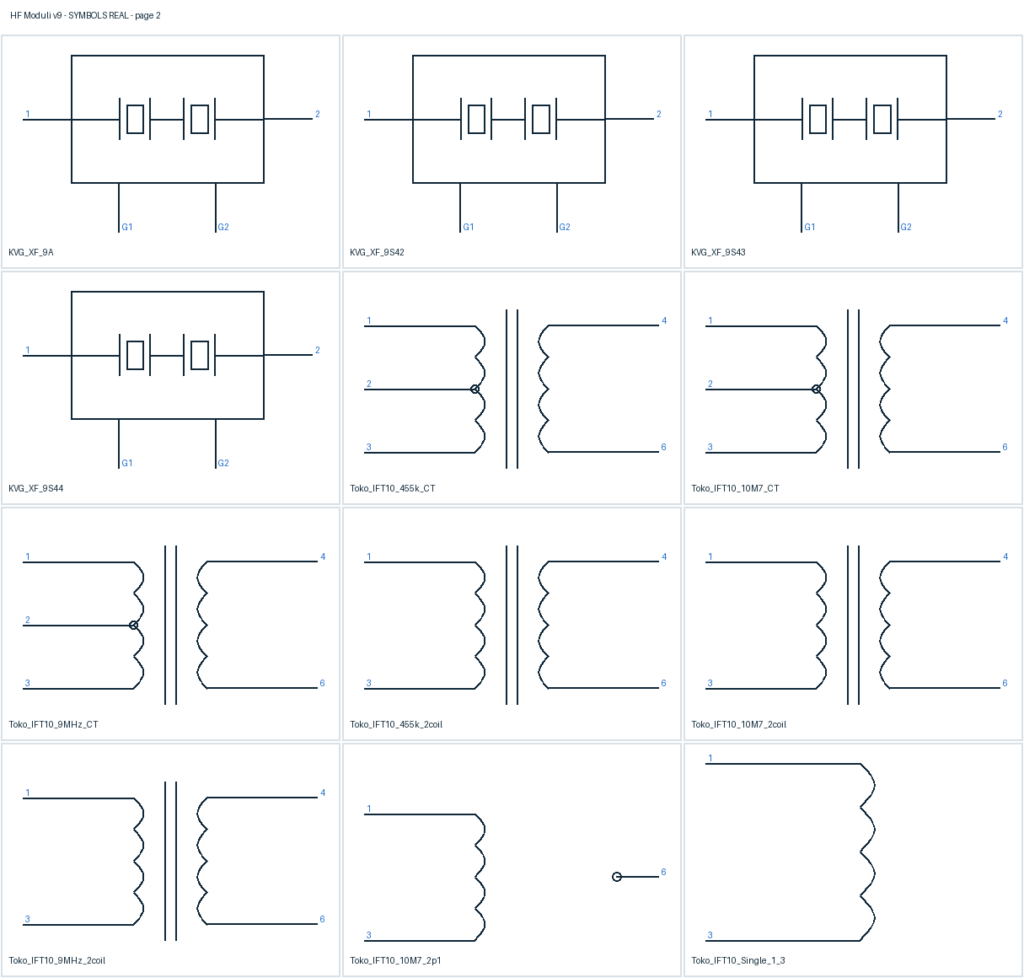
- Generic ceramic filter symbol
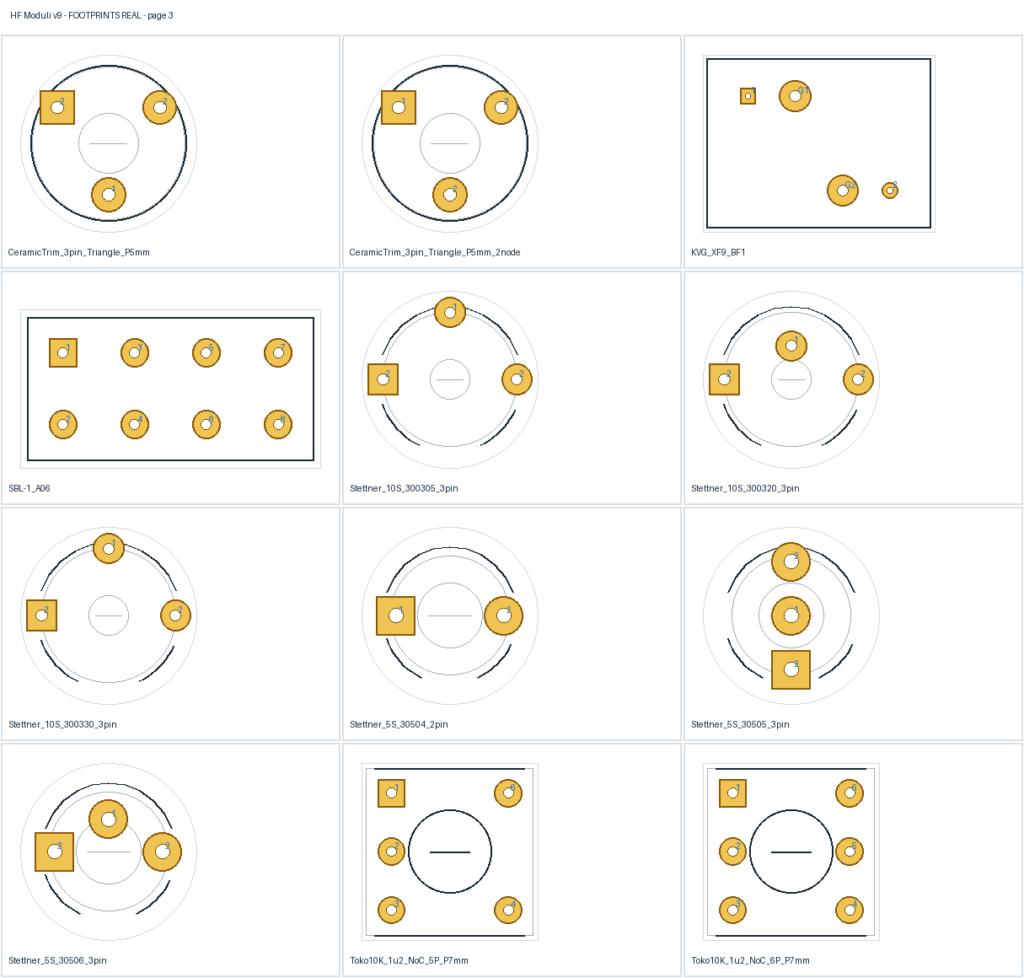
- TOKO-style 10 mm IF can footprints for TOKO 455 kHz, 9 MHz, 10,7 MHz IF-CAN
- 10K-style 1.2 µH and 2.6 µH IF/RF can footprints without built-in capacitor
- Stettner trimmers and generic ceramic trimmer footprints
- KVG filter XF-9A, XF-9 S42/S43/S44 footprints and related RF support parts
Preview sheets
Download
You can download the KiCad library package:
How to Install and Use the HF Moduli KiCad Library
The HF Moduli library provides custom schematic symbols and THT footprints for vintage RF components, Soviet vacuum tubes, TOKO-style IF transformers, KVG crystal filters, SBL-1 mixers and ceramic trimmers.
Installing the library in KiCad is straightforward and requires only a few steps.
Step 1 — Download and extract
Download the latest HF Moduli library ZIP archive and extract it to a permanent directory on your computer. I use the same directory of the project I’m working
The two essential components are:
HF_Moduli.kicad_sym— schematic symbol library.HF_Moduli.pretty— PCB footprint library.
Keep both in the same project library directory and avoid moving them after installation.
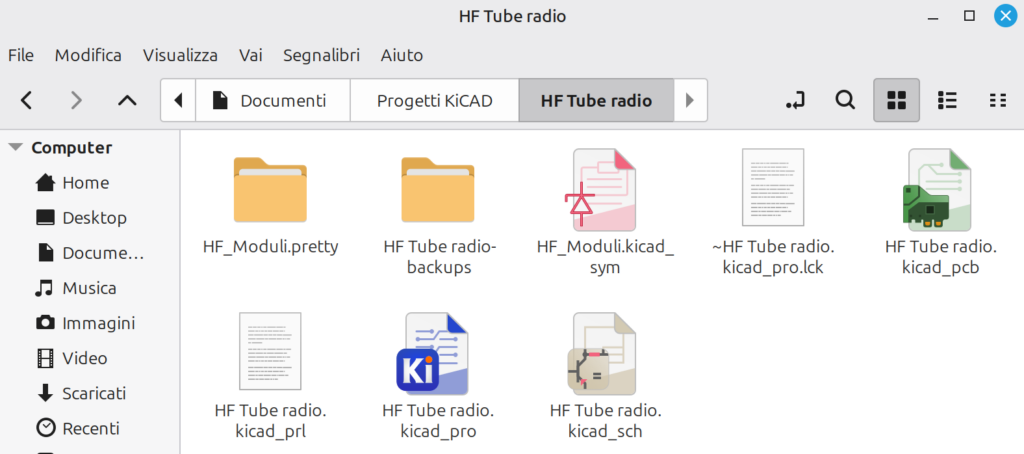
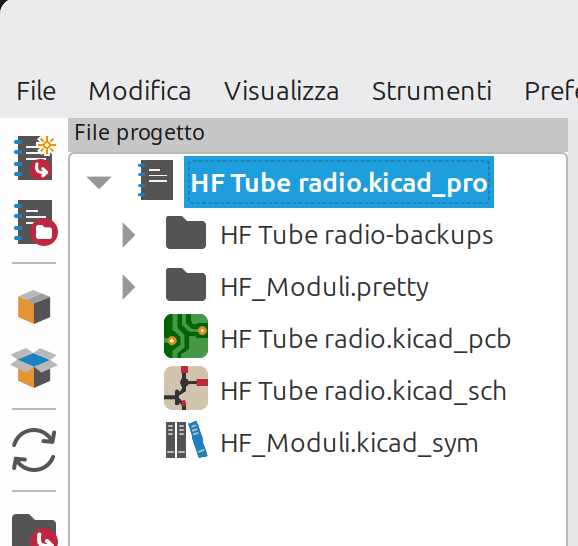
When you’ll open your KiCAD project you should see the library already in your project’s file tree.
Step 2 — Install the schematic symbols
- Open KiCad and launch the Schematic Editor.
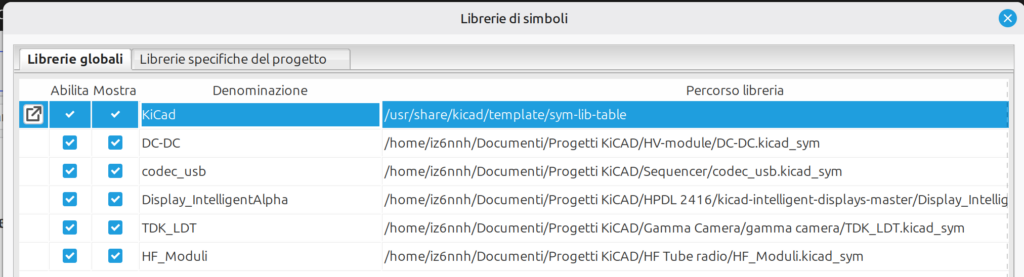
- Select Preferences → Manage Symbol Libraries.
- Choose the Global Libraries tab.
- Click the button to add an existing library.
- Locate and select
HF_Moduli.kicad_sym. - Confirm the changes.
The new components should now appear under HF_Moduli when using the Add Symbol command.
Step 3 — Install the PCB footprints
- Open the PCB Editor.
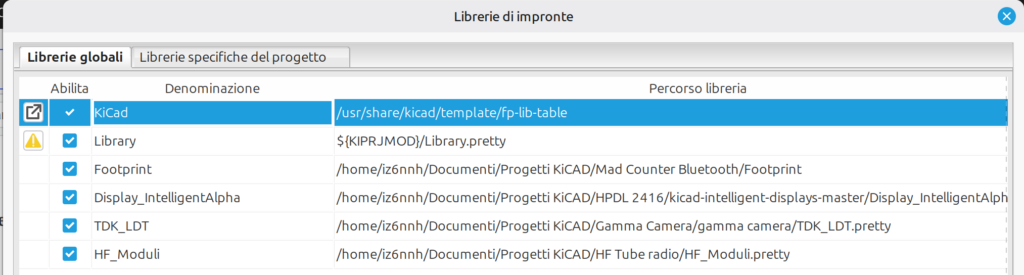
- Select Preferences → Manage Footprint Libraries.
- Choose the Global Libraries tab.
- Add the existing
HF_Moduli.prettydirectory. - Make sure the library nickname is
HF_Moduli. - Confirm and save.
The footprints will now be available in the footprint browser.
Step 4 — Start designing!
Open a schematic, press A to add a symbol and search for HF_Moduli.
Choose your component and check its assigned footprint under Symbol Properties. The footprint identifiers use the HF_Moduli: prefix.
You can now design your own RF modules, IF amplifiers, oscillators, mixers and classic vacuum-tube circuits.
Important notes
Some footprints are based on original manufacturer drawings, while others are intended for hand-formed component leads. Always verify the physical dimensions, terminal arrangement and electrical connections against your actual components before manufacturing a PCB.
For the rod tubes, both horizontal and vertical mounting footprints are available.
Happy homebrewing and 73!
IZ6NNH — MadExp.it